
Navigation & Sidebar Architecture
Systematic overview of primary modules, icon semantics, and routing paths.
3 min readUpdated October 2026
3 HOTSPOTS
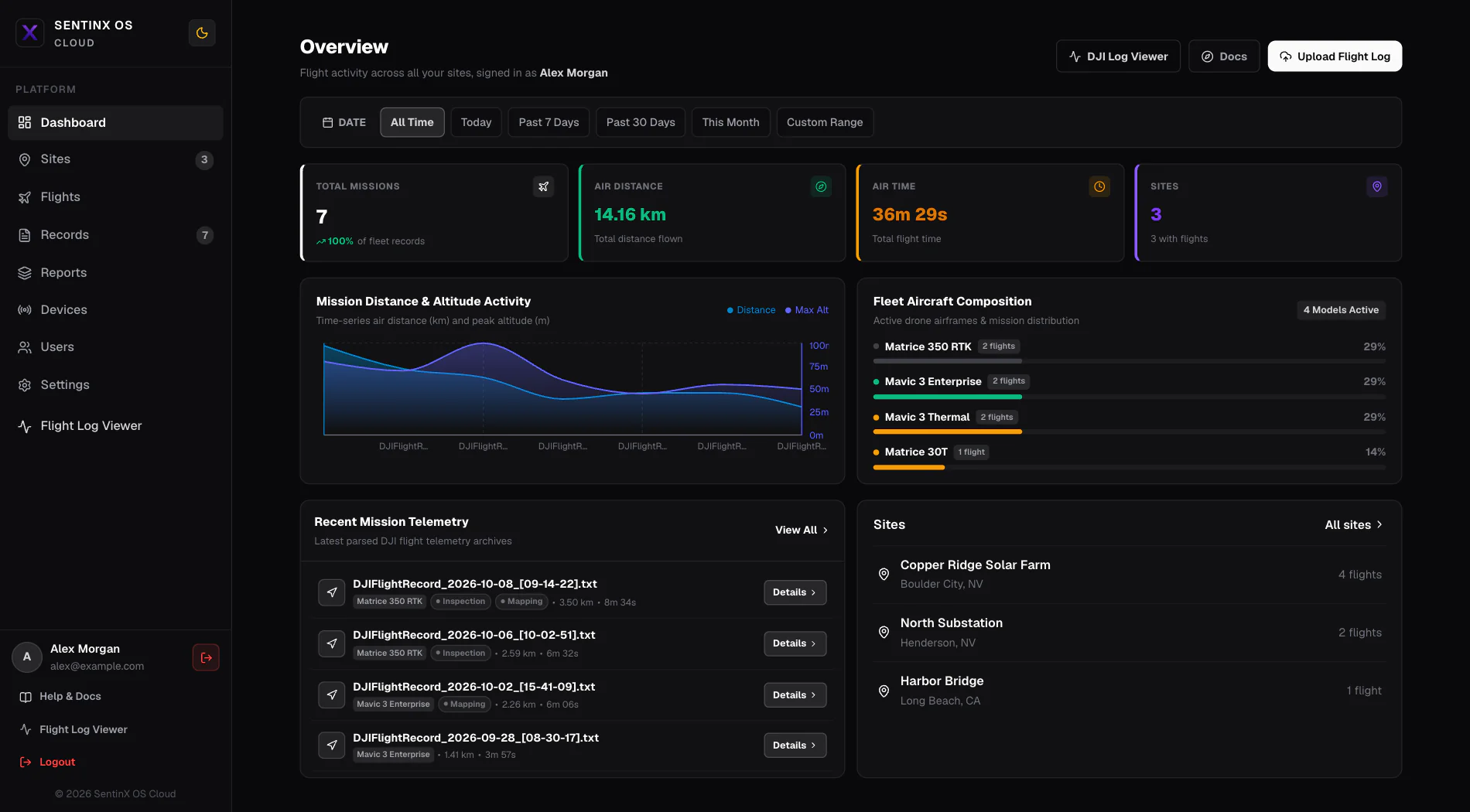
1Primary modules
Dashboard, Sites, Flights and Records
2Reports, Devices & Settings
Fleet summaries, aircraft inventory and preferences
3Account
Signed-in user, help, the Flight Log Viewer and logout
Sidebar Modules & Shortcuts#
The persistent sidebar allows instant switching between all platform operational layers:
Dashboard (
Home icon): Master summary, KPI metrics, and latest flight feed.Sites (
MapPin icon): Geographical site catalog, location metadata, and localized flight groupings.Flights (
Plane icon): Master flight records table with multi-criteria search, tagging, and bulk actions.Compare (
Sliders icon): Side-by-side technical comparison suite for 2 to 4 flights.Synchronized Replay (
Activity icon): Multi-drone synchronized 3D trajectory playback on a unified elapsed timeline.Devices (
Cpu icon): Fleet airframe inventory, detected serial numbers, and firmware tracking.Reports (
FileText icon): Compliance documentation, incident audit logs, and PDF export center.Settings (
Settings icon): Metric/Imperial unit selection, theme preference, and cloud storage diagnostics.Collapsible & Mobile Behavior#
On wide monitors, the sidebar expands to show module names and status badges.
Clicking the collapse toggle compresses the sidebar into an icon-only tactical strip.
On tablet and mobile viewports, the sidebar automatically converts into a slide-over tactical drawer.