
Uploading & Ingesting Flight Logs
Supported ingestion protocols, S3 bucket storage, and parsing pipelines.
4 min readUpdated October 2026
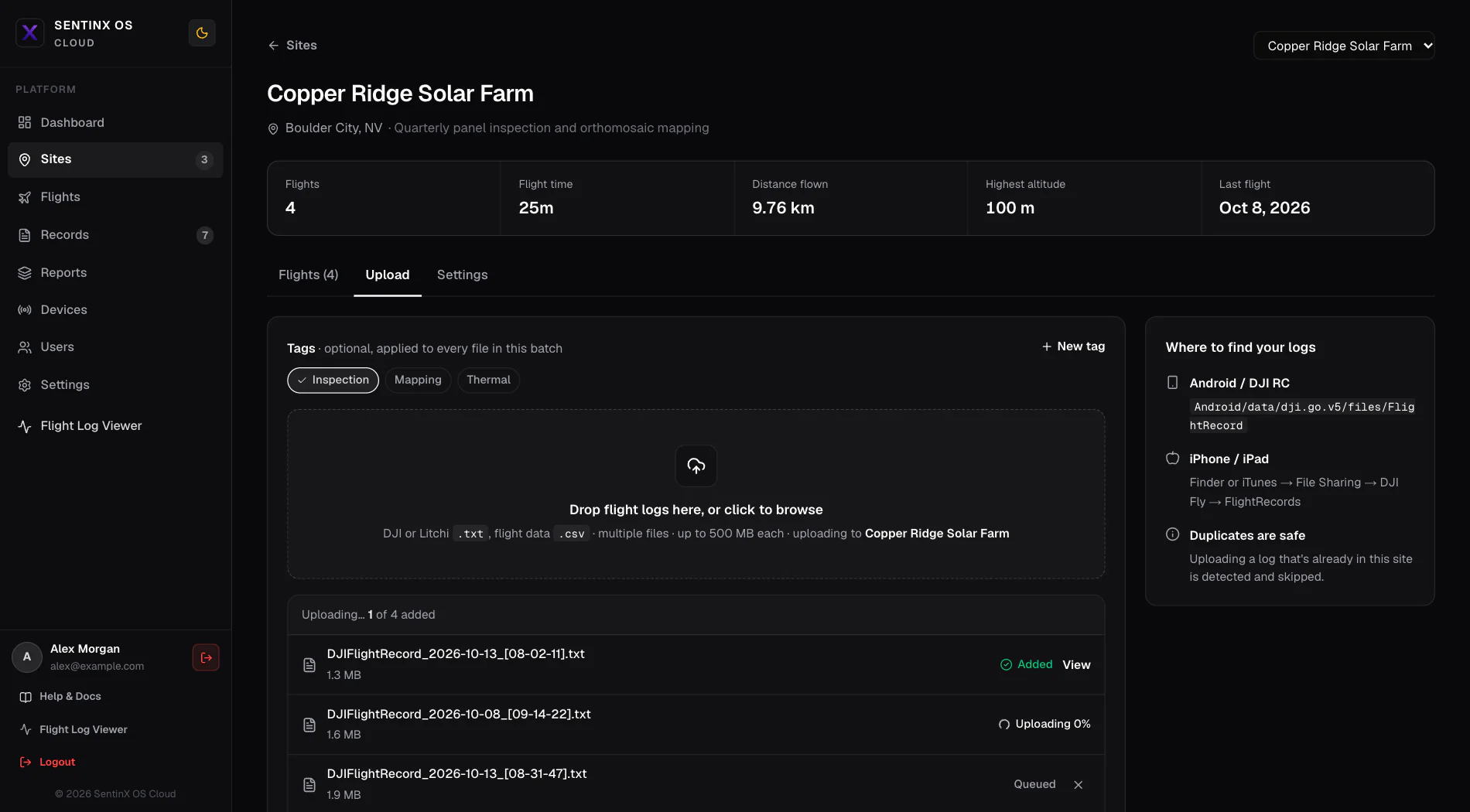
Upload Methods & Ingestion Pipeline#
Operators can ingest flight logs into SentinX Cloud through several methods:
1
Inside a site: Open the site and switch to the Upload tab. Files go straight into that site.
2
Upload dialog: Click "Upload logs" on the Dashboard or Sites page, pick a site (or create one), then drop or browse for files.
3
Batch upload: Select several
.txt / .csv files at once. Each file shows its own progress — Uploading, Analysing, Added, Already in site or Failed (with the reason and a Retry button). Files are processed one after another.4
From DJI Viewer: Upload and inspect a log in the public viewer, then click "Save to SentinX Cloud" to archive without re-uploading.
Automated File Validation#
During ingestion, SentinX executes an automated 4-stage pipeline:
1
Magic Byte Inspection: Verifies binary headers against known DJI signatures (
.txt, .dat) or structured CSV schemas.2
Telemetry Extraction: Decodes GPS latitude/longitude, barometric altitude, battery percentages, pitch/roll/yaw, and RC control stick states.
3
Anomaly & Bounds Checking: Flags sudden signal drops, non-GPS segments, or corrupted telemetry frames without inventing synthetic data.
4
Tenant Encryption: Encrypts the raw file and stores it under the operator's dedicated prefix.
Hybrid S3 & Local Storage Archival#
AWS S3 Cloud Mode: Files are stored in Amazon S3 with SSE-S3 AES-256 encryption under
users/{userId}/flights/.Local Fallback Mode: When AWS credentials are not configured, files are securely saved to
storage/telemetry/{userId}/ with full cryptographic isolation.